Wallet & zaps
Connect a Lightning wallet
The extension connects to a Lightning wallet so you can check funds, receive sats, and approve payments. Choose the connection method supported by your wallet.
Before you start
- Unlock the extension and select the account that should use the wallet.
- For an existing wallet, have its NWC connection secret or LNbits HTTPS URL and wallet Admin API key ready.
Steps
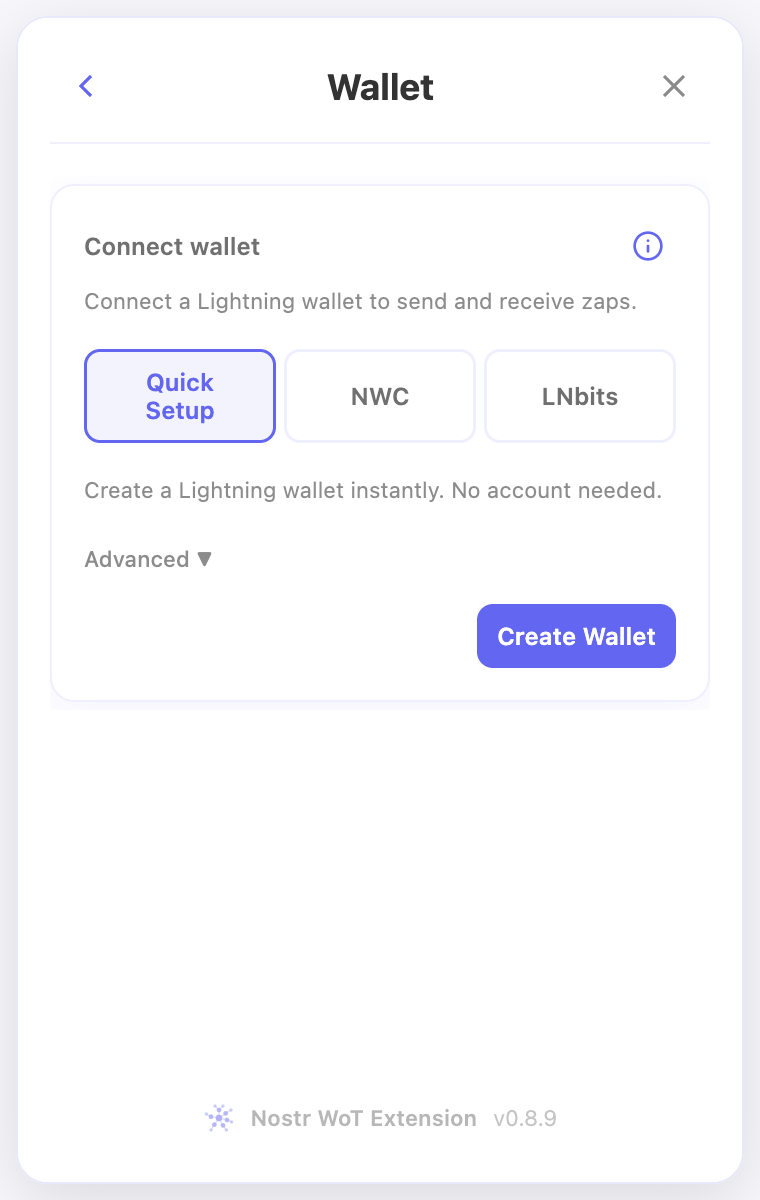
- Open Wallet and choose Quick Setup, NWC, or LNbits. Quick Setup creates a custodial wallet with a provider that holds the funds.
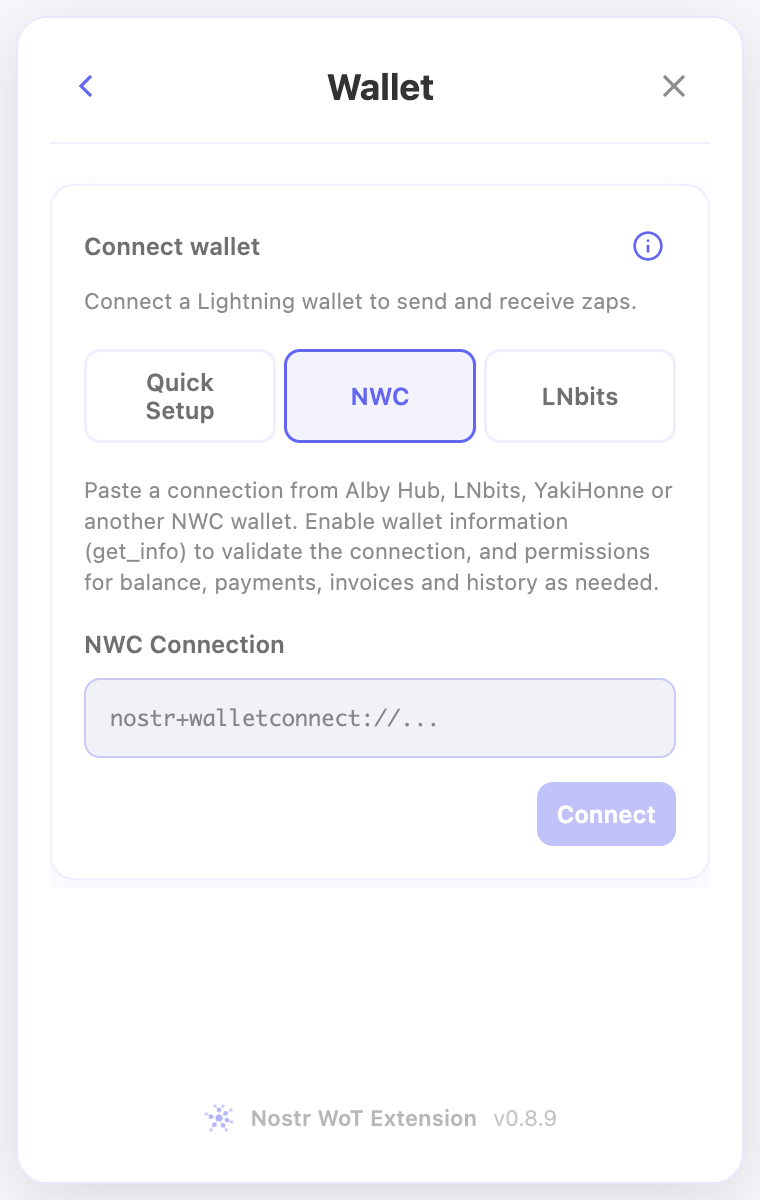
- For NWC, create a dedicated connection in your wallet and copy the complete nostr+walletconnect:// secret. Allow wallet information and the operations you need.
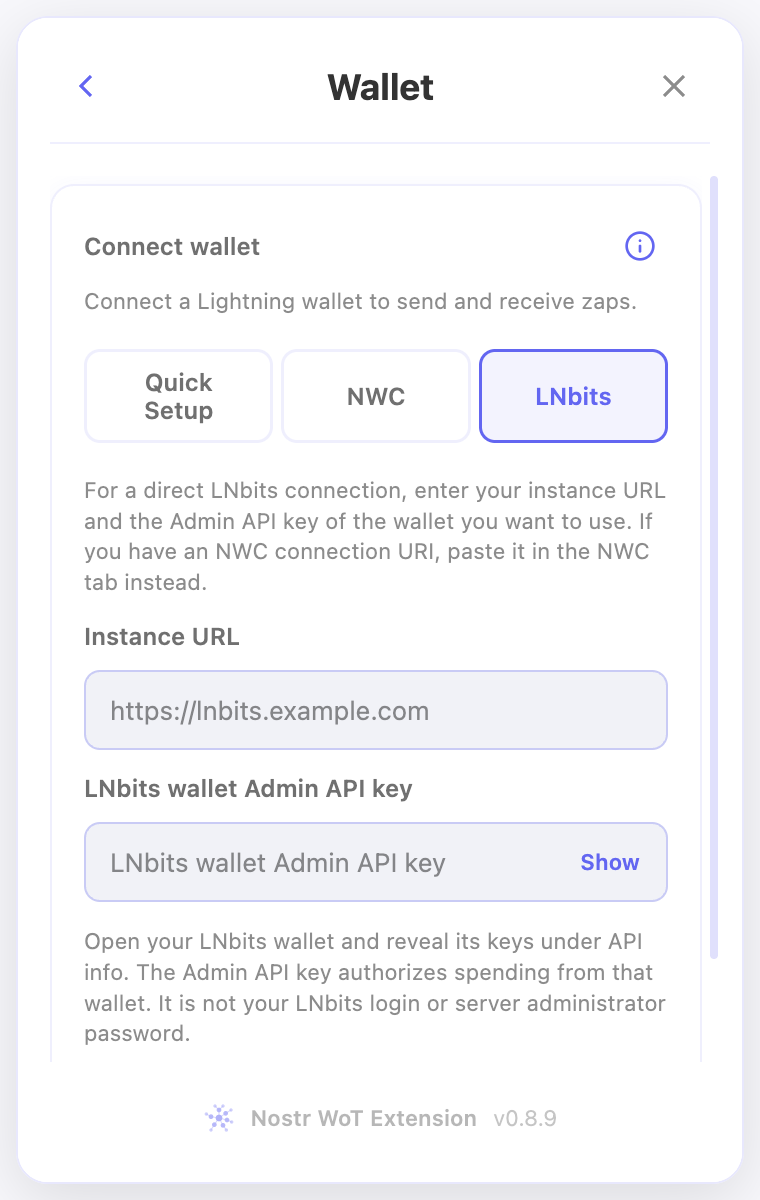
- For LNbits, enter the instance’s HTTPS URL and the wallet’s Admin API key. This is a wallet spending credential, not your administrator login password.
- Connect, then check the balance and wallet activity. Use Deposit to create an invoice when you want to add sats.
Check the result
- The connected wallet should show its available balance and the features its connection permits.
- If balance, invoice creation, or history is unavailable, review the connection’s permissions and expiry in your wallet. NWC and LNbits access do not by themselves determine who holds the funds.
On screen
Screenshots use the English interface and demo accounts. Open an image to see it at full size.
Watch the related video
Video in English. Some labels may differ by version.
Watch on YouTube