App permissions
Review an app’s request
An approval request tells you what a website wants to do with the active account. A one-time decision handles that request; a remembered decision can also affect future requests.
Before you start
- Make sure the active account is the identity you want the website to use.
- Check which website you are using and what action you just started there.
Steps
- Open the extension’s pending request when a site asks to connect, sign, decrypt, or authenticate.
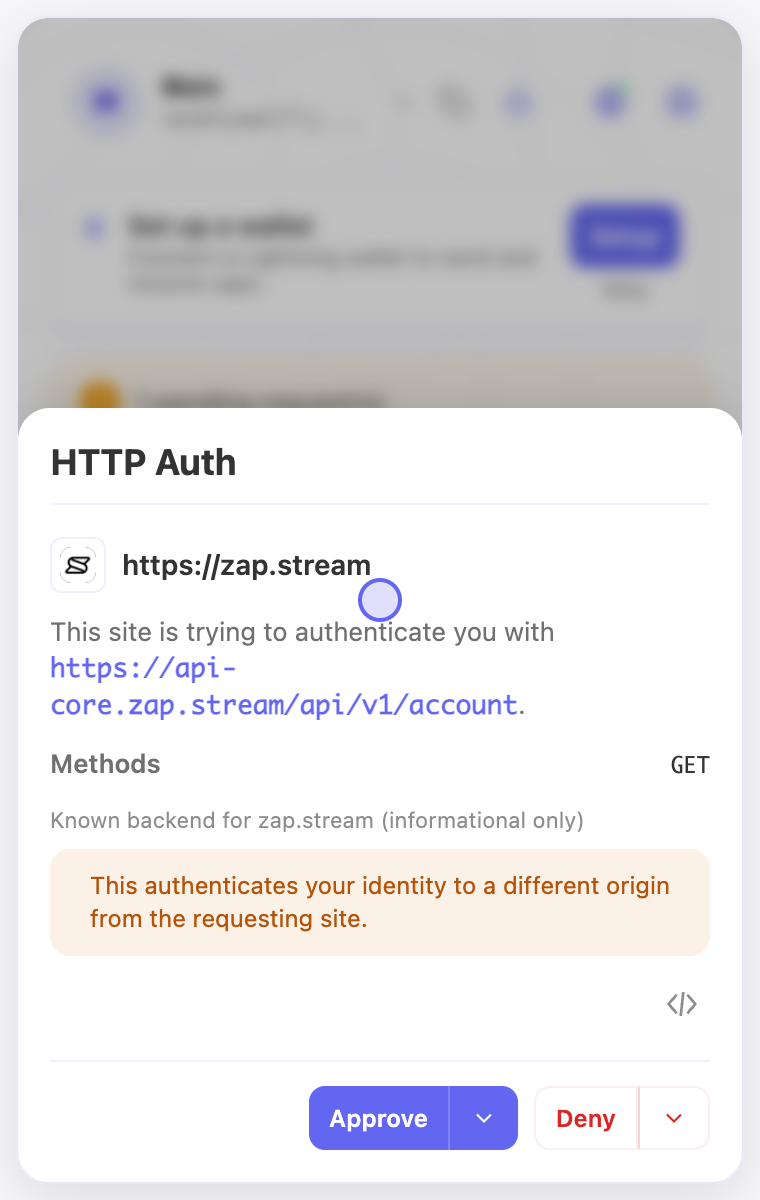
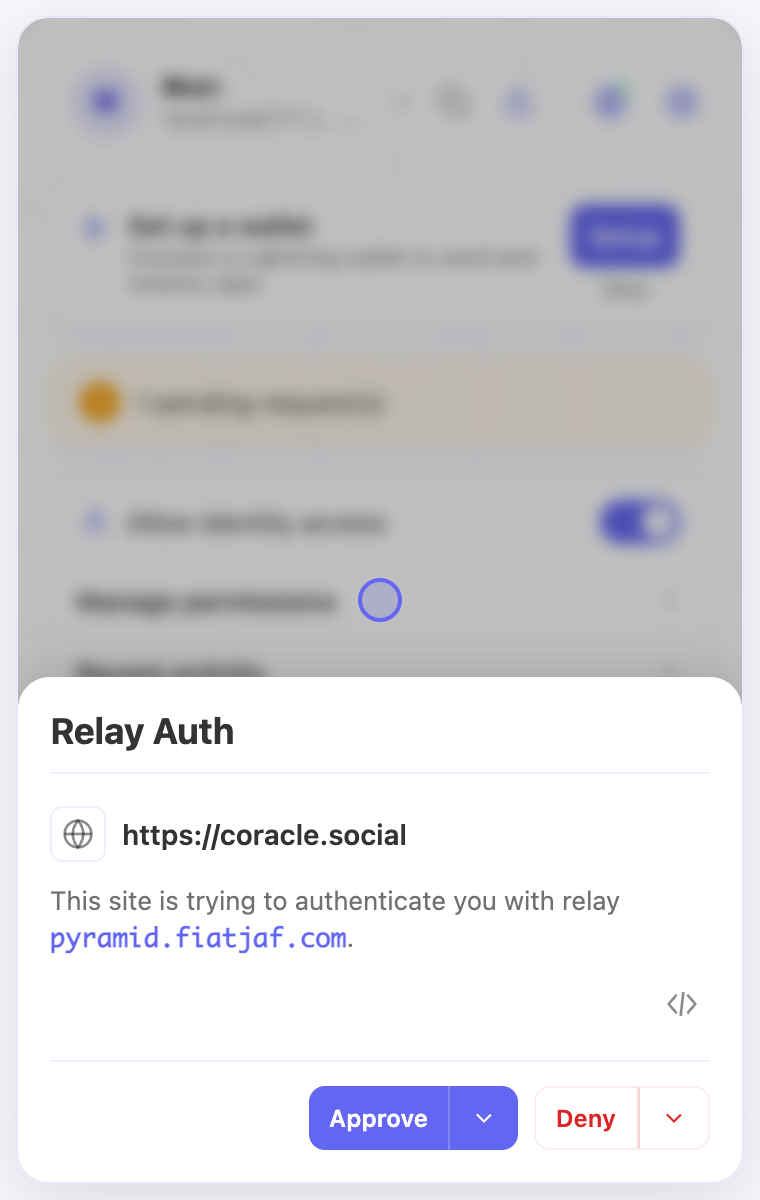
- Check the requesting website and the action. Read the content or destination shown; the code button opens the raw event for closer inspection.
- Choose Approve or Deny for the current request. Open an arrow menu only if you intend to remember a decision.
- For grouped requests, check which requests are selected before approving the group. Revealing blurred message content does not itself approve sending it to the website.
Check the result
- Return to the website and check whether the action completed; review Recent activity if you need to identify the request.
- An unexpected request can be denied. Review saved site or authentication permissions if similar requests are being allowed without the review you expect.
On screen
Screenshots use the English interface and demo accounts. Open an image to see it at full size.
Watch the related video
Video in English. Some labels may differ by version.
Watch on YouTube