Troubleshooting
A request is denied
A remembered denial can block a request without another approval prompt. The control to change depends on whether the website is dismissed, an ordinary action is denied, or a sign-in destination is blocked.
Before you start
- Select the affected account and visit the website making the request.
- Note the action or error so you can change the relevant permission.
Steps
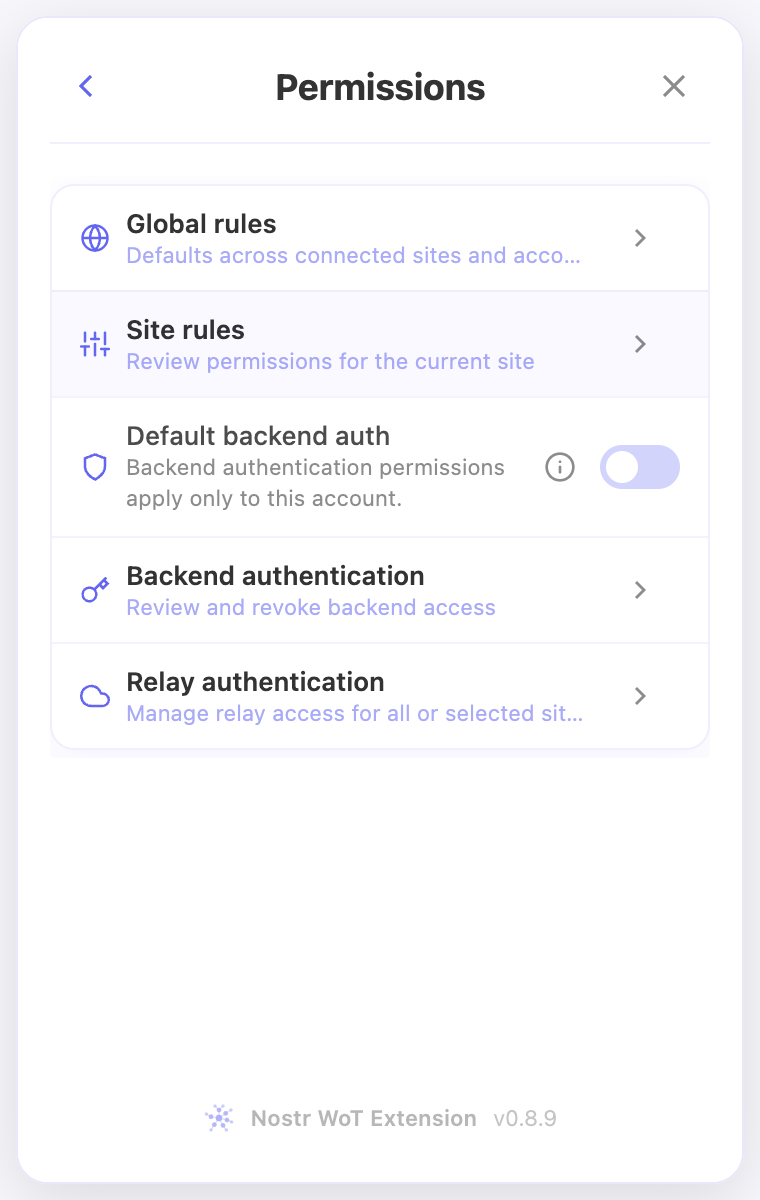
- Open Permissions → Site rules for the current website.
- If the website is dismissed, review or remove that dismissal so it can ask to connect again.
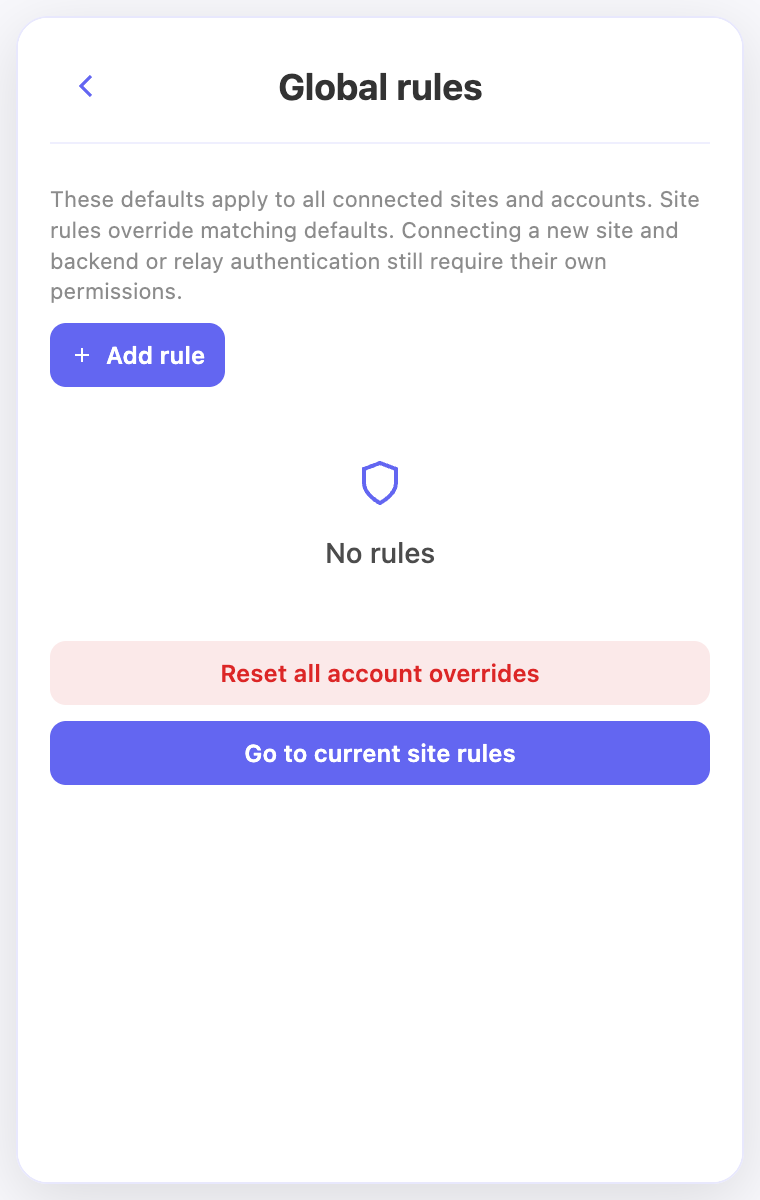
- For an ordinary action, check both site overrides and inherited global rules. Change the relevant denial; a broader Deny may also need attention.
- For backend or relay sign-ins, review their separate authentication screens. Retry the action on the website after making the intended change.
Check the result
- A removed dismissal allows the website to ask again; it does not automatically connect the site or approve signing.
- Resetting site overrides keeps global defaults and separate authentication decisions. Inspect those controls if the request is still denied.
On screen
Screenshots use the English interface and demo accounts. Open an image to see it at full size.