Settings
Change the appearance
Change how the extension looks using its appearance and theme controls. These settings affect the extension interface, not the design of websites you visit.
Before you start
- Open the extension from the browser toolbar and unlock it if needed.
- Decide whether you want a fixed light or dark appearance, or one that follows your system.
Steps
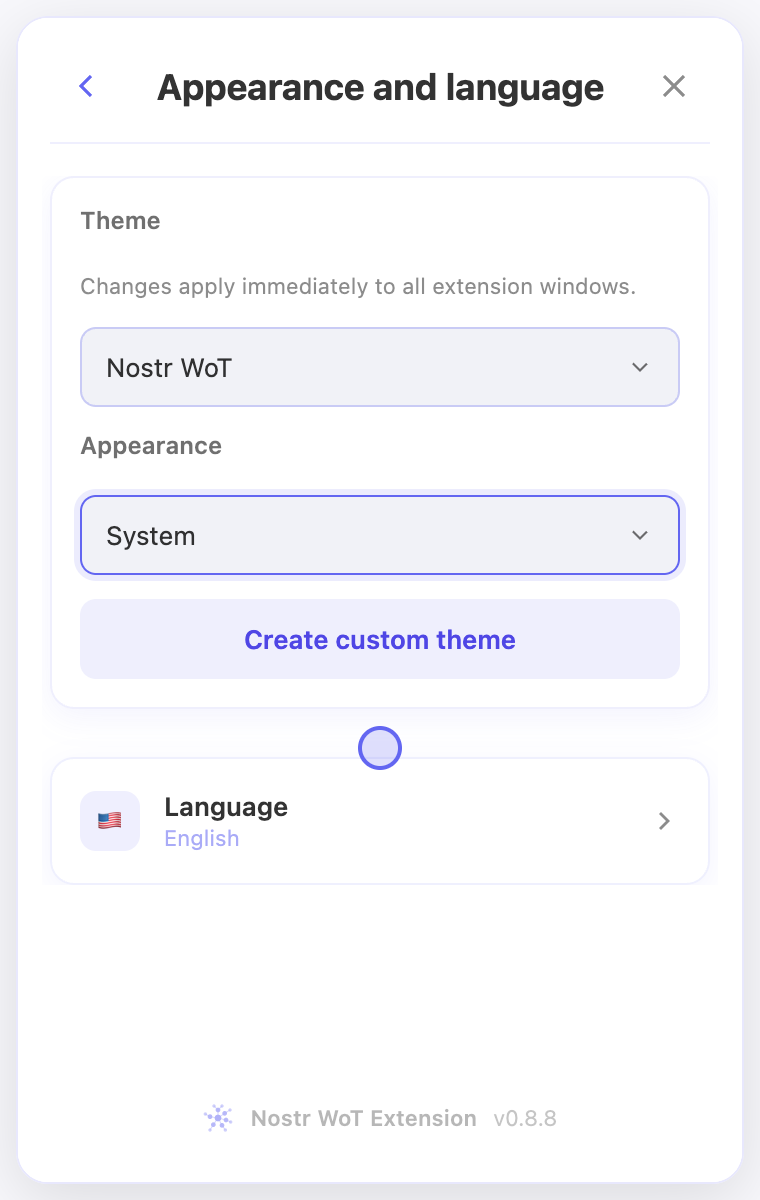
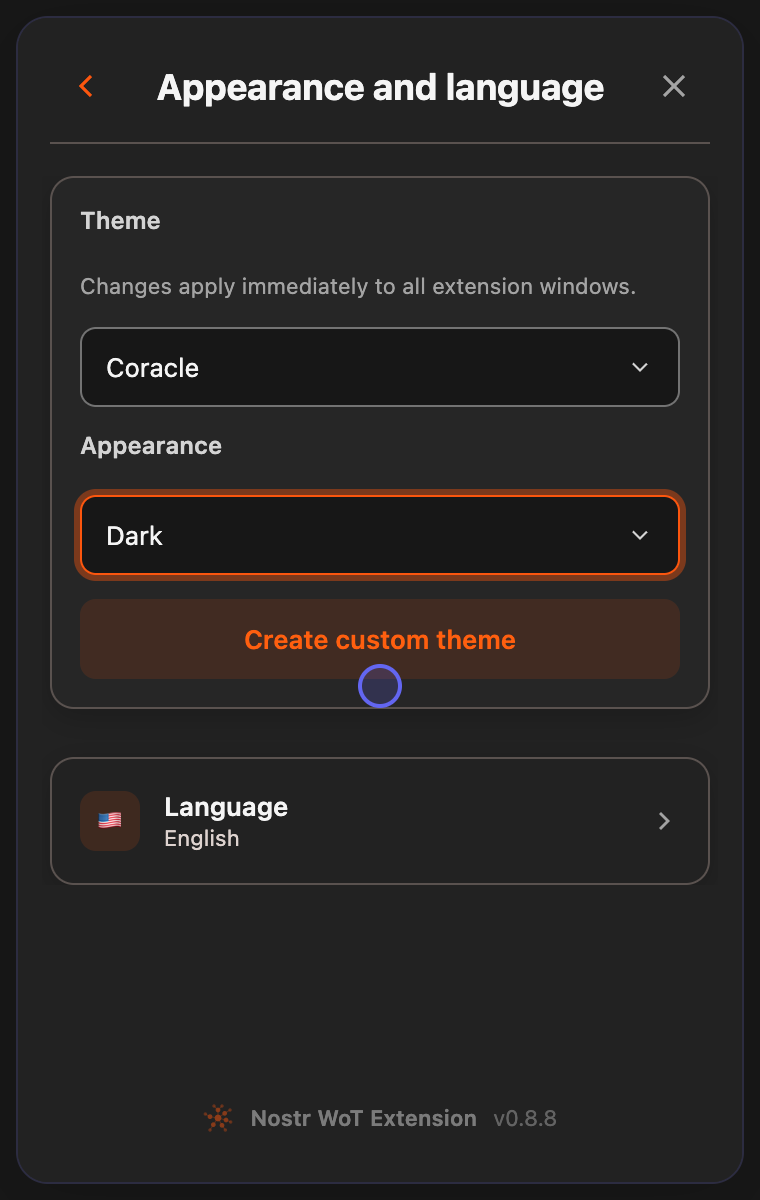
- Open Settings → Appearance and language.
- Choose light, dark, or system appearance. Choose a theme from the available options.
- Return to the dashboard and look at the text, cards, and buttons in the selected appearance.
Check the result
- The extension should use the selected appearance when you return to its screens.
- If the result is hard to read or not what you intended, return to the same controls and choose another theme or appearance.
On screen
Screenshots use the English interface and demo accounts. Open an image to see it at full size.
Watch the related video
Video in English. Some labels may differ by version.
Watch on YouTube