Settings
Set a password and auto-lock
A vault password protects access to the keys stored in this browser. Timed auto-lock asks you to unlock again after inactivity; it does not replace a recovery backup.
Before you start
- Keep a recoverable backup of your account before changing vault protection.
- Have a secure place to store the password you will need to unlock this browser.
Steps
- Unlock the extension and open Settings → Security.
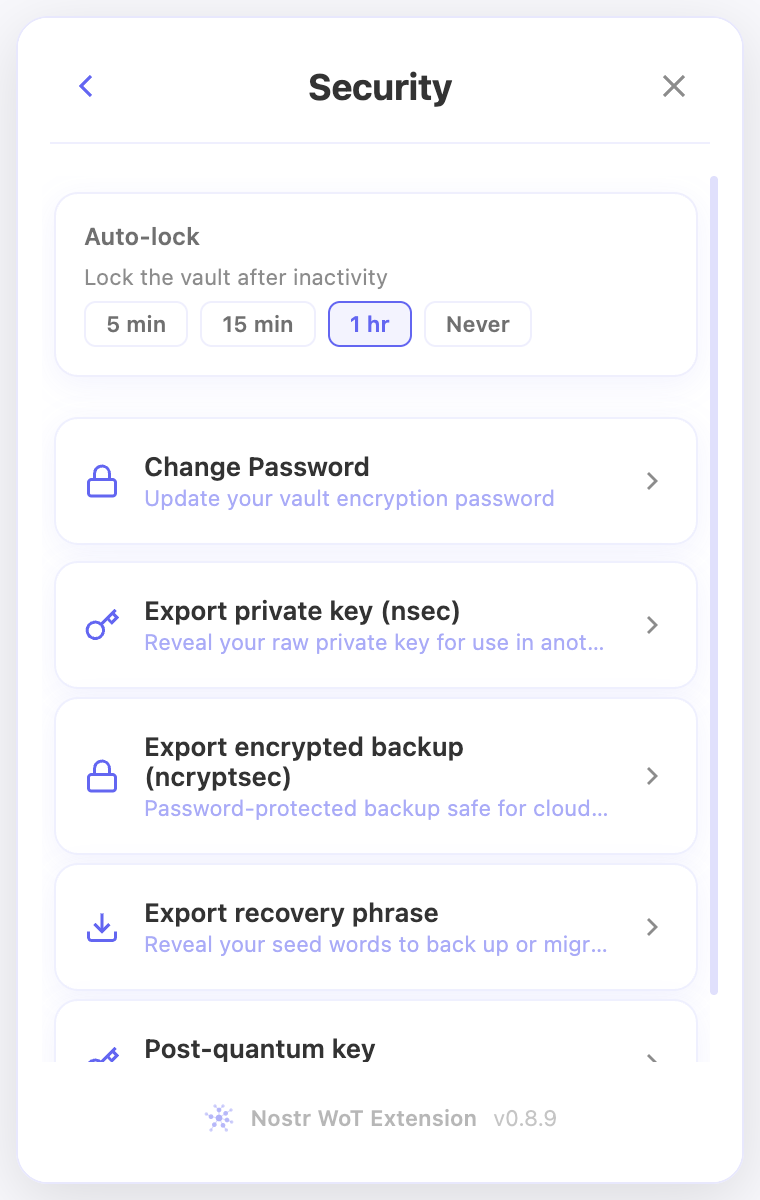
- Choose a timed auto-lock interval. If you are turning timed locking on, set and confirm the password when prompted.
- To replace an existing password, use Change password and complete the requested fields.
- Lock the vault when finished, then unlock it using your saved password.
Check the result
- The selected timed interval should remain visible in Security after you reopen it.
- A vault password is not a recovery phrase or an encrypted backup’s password. Keep those recovery records available independently of this browser.
On screen
Screenshots use the English interface and demo accounts. Open an image to see it at full size.
Watch the related video
Video in English. Some labels may differ by version.
Watch on YouTube