Accounts & backups
Back up your account
A recovery backup lets you restore an account after losing this browser or device. Keep enough information to restore the exact identity, including its derivation path when it shares a recovery phrase.
Before you start
- Unlock the extension and select the account you intend to back up.
- Prepare private storage for the backup and record the account’s public key so you can recognize it after recovery.
Steps
- Open the account’s key or backup controls. The available options depend on whether it uses a recovery phrase, an imported private key, or a remote signer.
- Save the private key or recovery backup in a secure location. Never paste private keys or recovery words into a website or a support message.
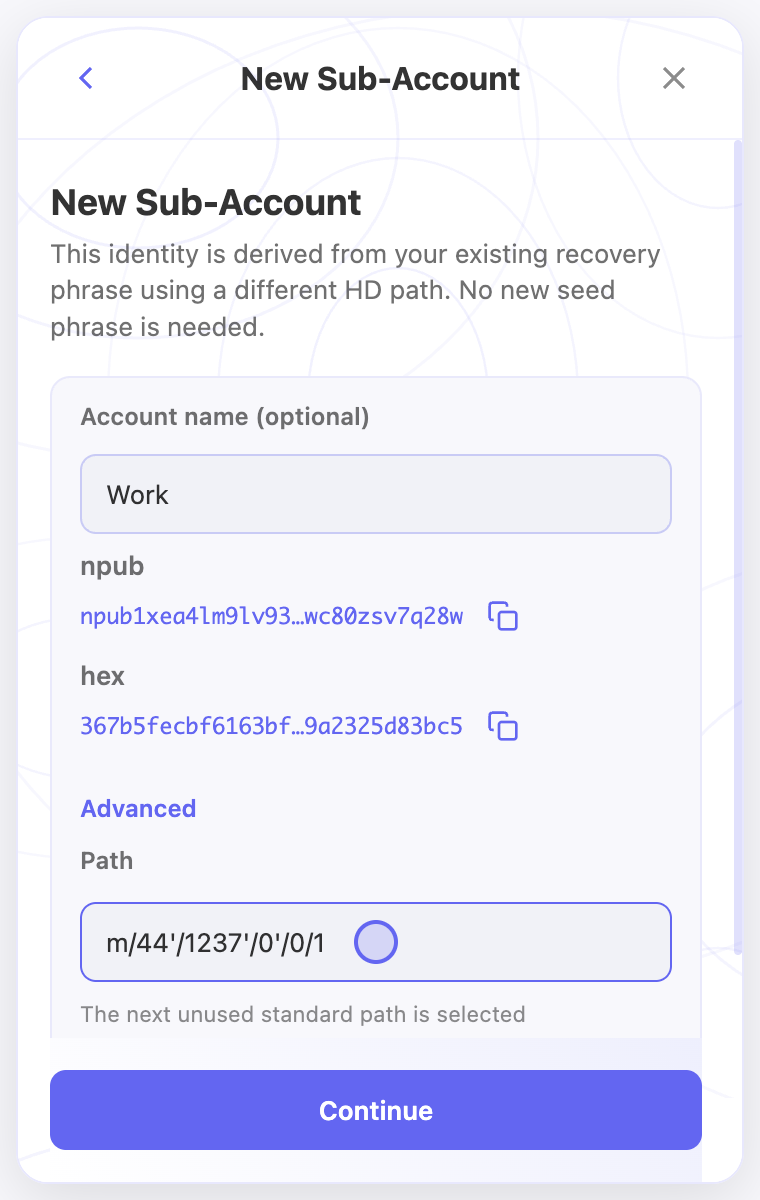
- For a derived identity, save both the main recovery phrase and the exact derivation path. Include the expected public key in your recovery records.
- If you create an encrypted backup, keep its password recoverable. Changing the browser’s vault password does not change an existing backup’s password.
Check the result
- Check that your saved copy is complete and readable before removing an account or clearing browser data.
- When restoring later, compare the recovered public key with your saved public key. Importing a phrase does not automatically recreate every sub-account.
On screen
Screenshots use the English interface and demo accounts. Open an image to see it at full size.
Watch the related video
Video in English. Some labels may differ by version.
Watch on YouTube