Accounts & backups
Import an existing account
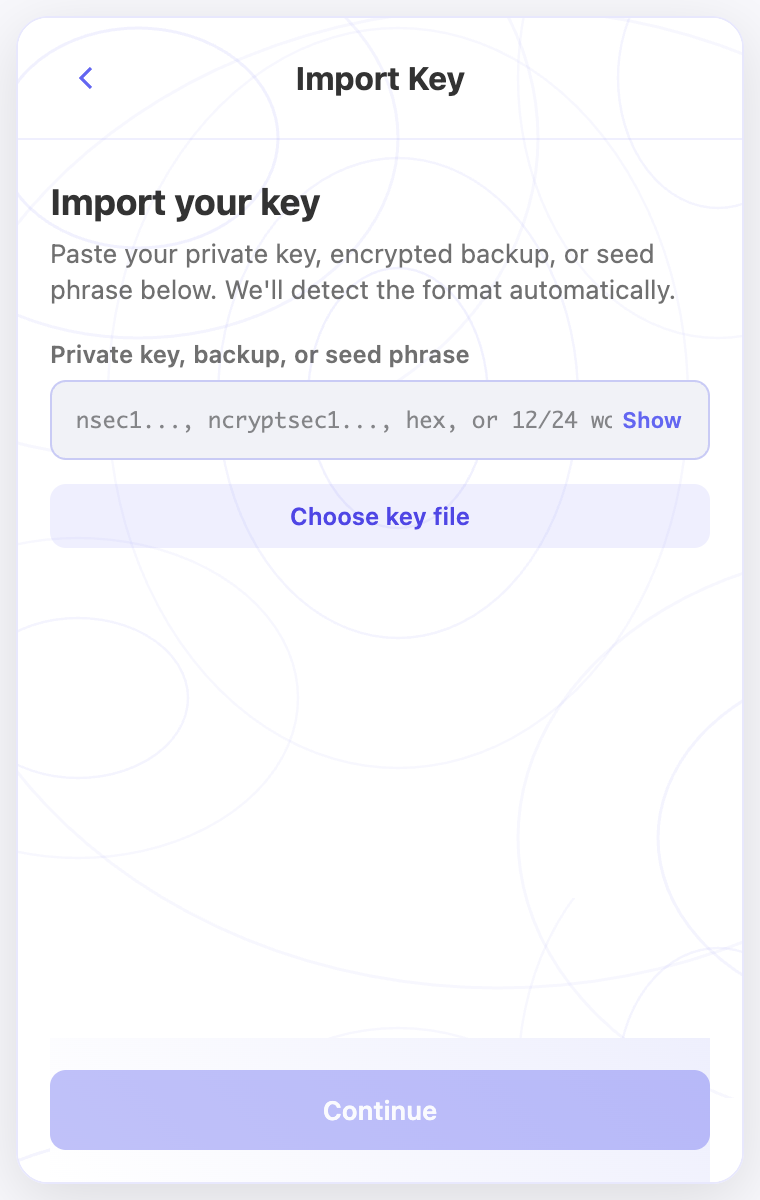
Restore an existing identity using its private key, recovery phrase, or supported encrypted backup. The extension detects the input format; an npub alone is a public key and belongs in Watch-Only.
Before you start
- Have your existing backup and, if it is encrypted, the password used to encrypt it.
- Keep the expected public key and any custom derivation path available to verify the restored identity.
Steps
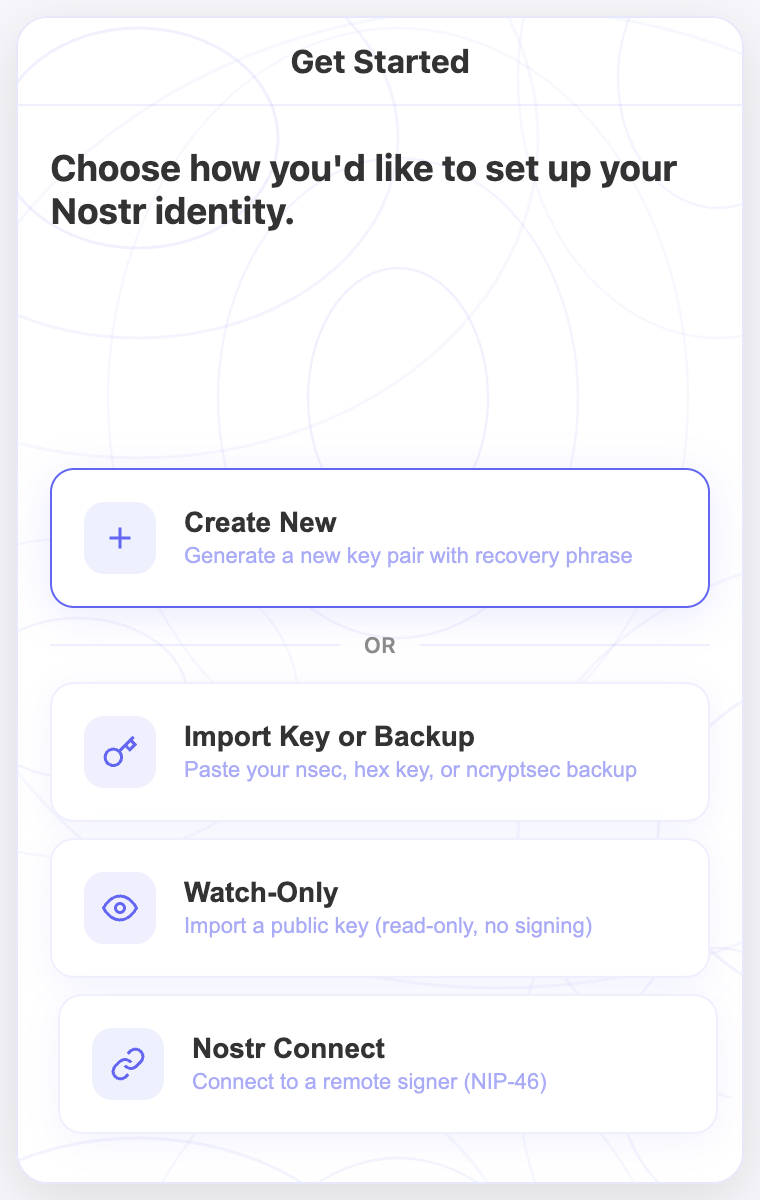
- Choose Import Key or Backup during setup, or Add Account → Import Key or Backup from the account selector.
- Paste the nsec, hex private key, or recovery phrase privately into the extension, or load your supported backup file.
- For an encrypted backup or ncryptsec, enter its backup password. Keep the original backup intact if the format or password is rejected.
- Continue after the format is recognized. Set a local vault password when prompted, or unlock an existing vault with its current password.
- Finish setup and compare the displayed public key with the identity you intended to restore.
Check the result
- The restored public key should match your saved account. A different key may mean you need the original derivation path.
- Importing a phrase starts with its first Nostr key; it does not automatically restore every derived identity or custom path.
On screen
Screenshots use the English interface and demo accounts. Open an image to see it at full size.