Accounts & backups
Switch accounts
Switch the active identity before using a different Nostr account. Websites can keep their own signed-in session, so changing the extension’s selection may also require reconnecting there.
Before you start
- Add or import each identity you want to switch between.
- Check the account name or public key you intend to use.
Steps
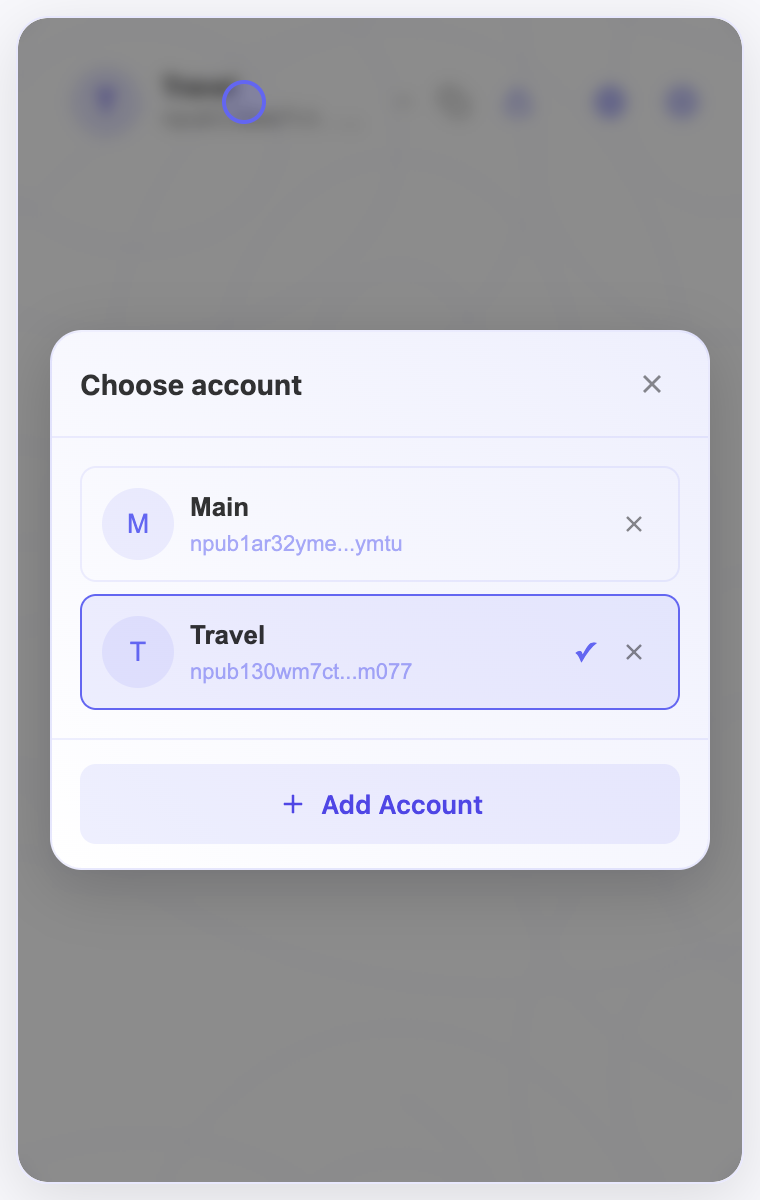
- Unlock the extension and open the account selector at the top of the popup.
- Select the identity you want to use and check its displayed name and public key.
- Return to the website. If it still shows the old identity, sign out there and reconnect using the extension.
Check the result
- Check the active account again before approving a new request.
- If the website still displays a different profile, verify its own signed-in account rather than assuming the extension selection changed that session.
On screen
Screenshots use the English interface and demo accounts. Open an image to see it at full size.