Settings
Change the language
Choose the language used by the extension’s controls and messages. This does not translate Nostr posts or change the website’s separate language setting.
Before you start
- Open and unlock the extension if needed.
- Find Settings using the gear icon; this also helps if the current language is unfamiliar.
Steps
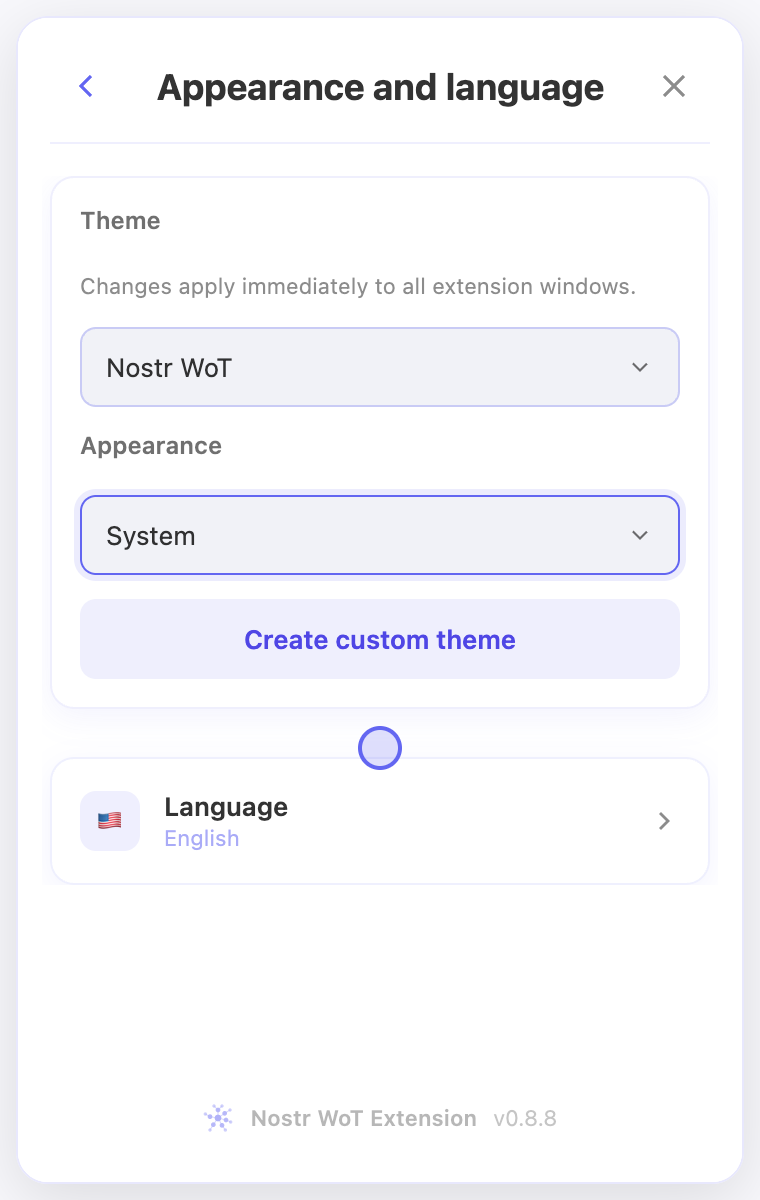
- Open Settings → Appearance and language → Language.
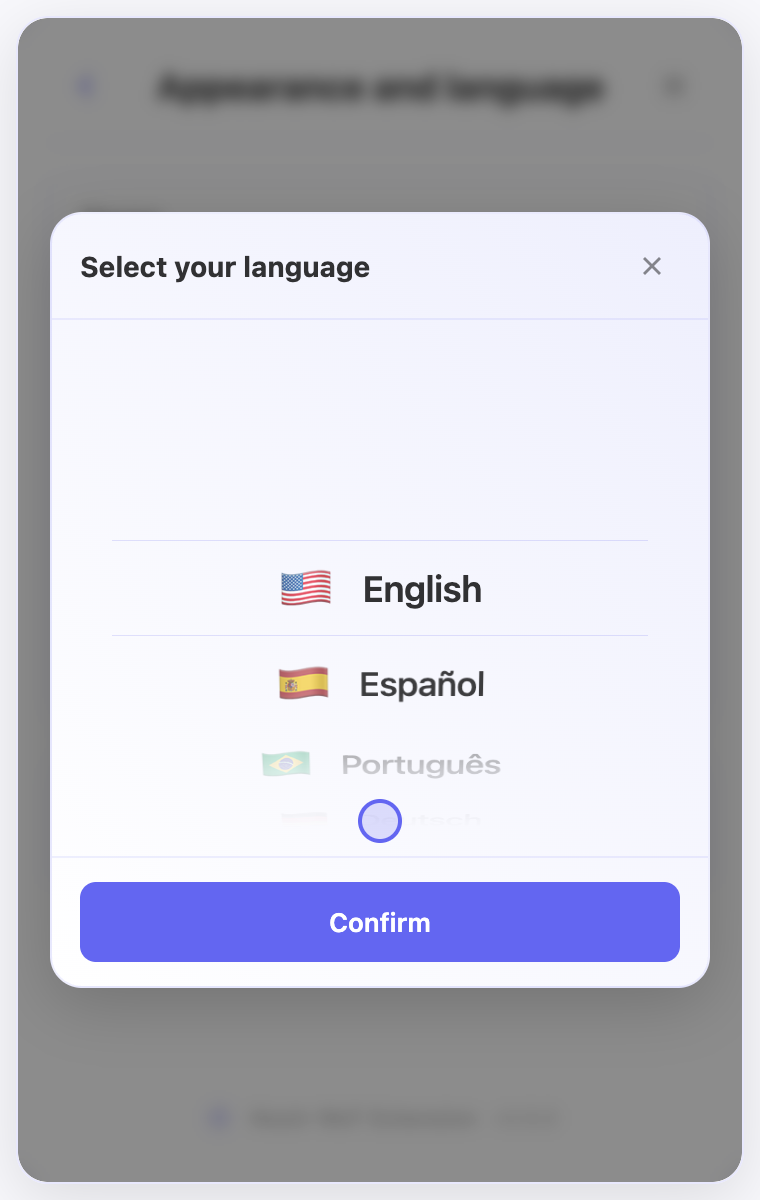
- Scroll or drag the language wheel until your language is centered. With the list focused, you can also use the up and down arrow keys.
- Select Confirm to apply the choice. The button remains in the current interface language until you confirm.
- Return to the interface and check the updated labels. Closing the picker without confirming keeps the previous language.
Check the result
- The language row should show your saved choice when you open it again.
- Some labels may remain in English. To switch back, use the gear icon and return to the same language picker.
On screen
Screenshots use the English interface and demo accounts. Open an image to see it at full size.
Watch the related video
Video in English. Some labels may differ by version.
Watch on YouTube