Accounts & backups
Connect a remote signer
Use Nostr Connect to keep your private key in a separate signer while browser apps request signatures through Nostr WoT.
Before you start
- Install Nostr WoT and a NIP-46-compatible remote signer.
- Keep your recovery phrase private; never enter it into the signer connection.
Steps
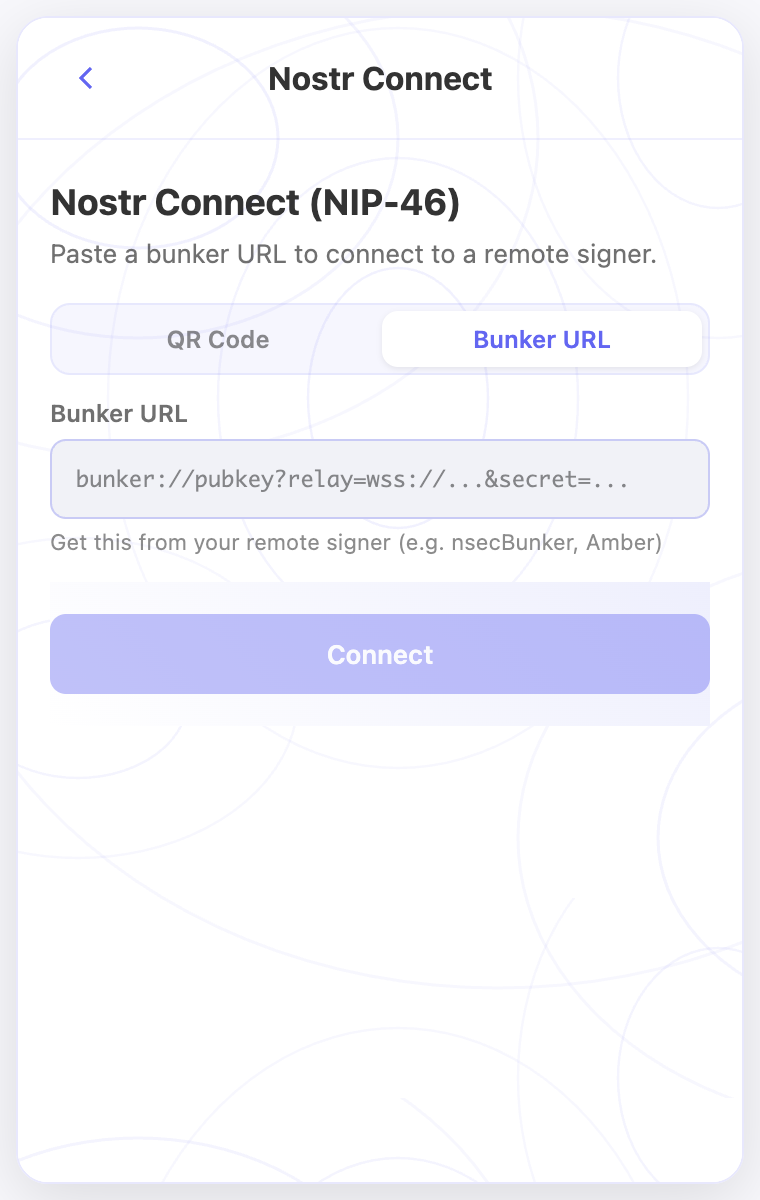
- Open the extension and choose Nostr Connect.
- Scan the connection QR code with your signer and approve the pairing there.
- Review the local connection protection and approve only apps you recognize.
- Open a NIP-07 browser app and confirm its signing request appears in your signer.
Check the result
- The signer should complete the request without moving your private key into the browser.
- The browser app should receive only the result of the approved signing request.
On screen
Screenshots use the English interface and demo accounts. Open an image to see it at full size.
Watch the related video
Video in English. Some labels may differ by version.
Watch on YouTube