Accounts & backups
Create a new account
Create a new Nostr identity when you do not already have the account you want to use. Its recovery words restore the identity; the vault password unlocks this browser.
Before you start
- Install the extension and open it from the browser toolbar.
- Have a private place to record all 24 recovery words and a secure place to store them.
Steps
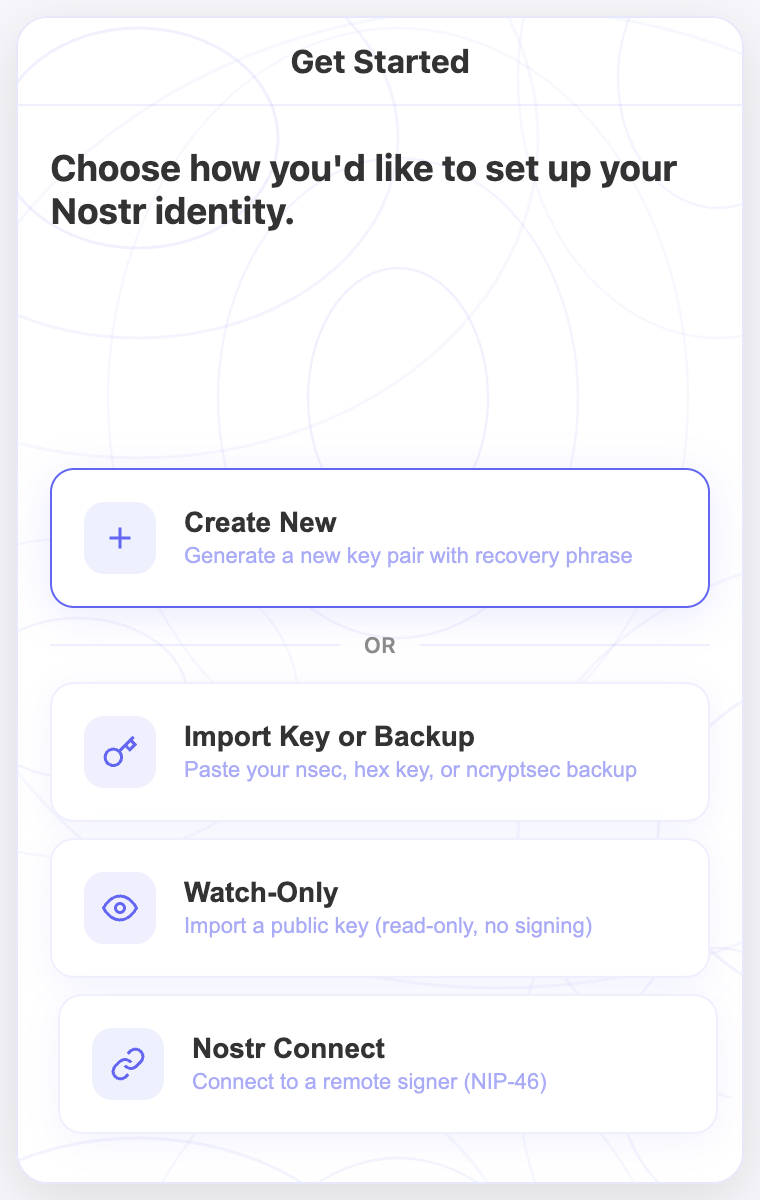
- On first setup, select Continue, then Create New. If you already have an account to restore, choose Import Key or Backup instead.
- Reveal the recovery phrase privately. Write all 24 words in their exact order, then complete the backup check using your saved copy.
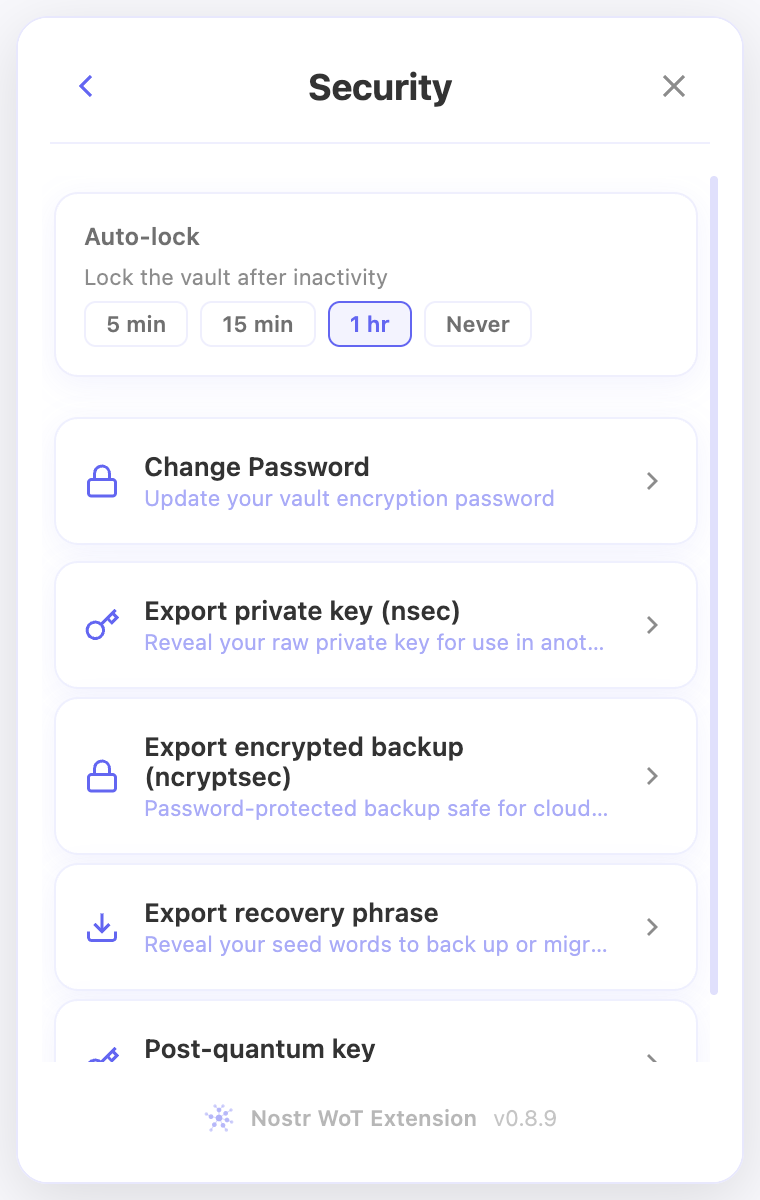
- Choose a timed auto-lock setting and set and confirm a vault password. Save the password separately from the browser.
- Continue through setup. Follow suggestions are optional; use Skip for now if you want to choose people later.
- Select Get Started and check the account name and public key shown in the extension.
Check the result
- Your account should appear in the account selector, with a public key you can copy.
- If Create New opens New Sub-Account, this vault already has a main recovery phrase. The new identity will share that phrase.
On screen
Screenshots use the English interface and demo accounts. Open an image to see it at full size.
Watch the related video
Video in English. Some labels may differ by version.
Watch on YouTube