Wallet & zaps
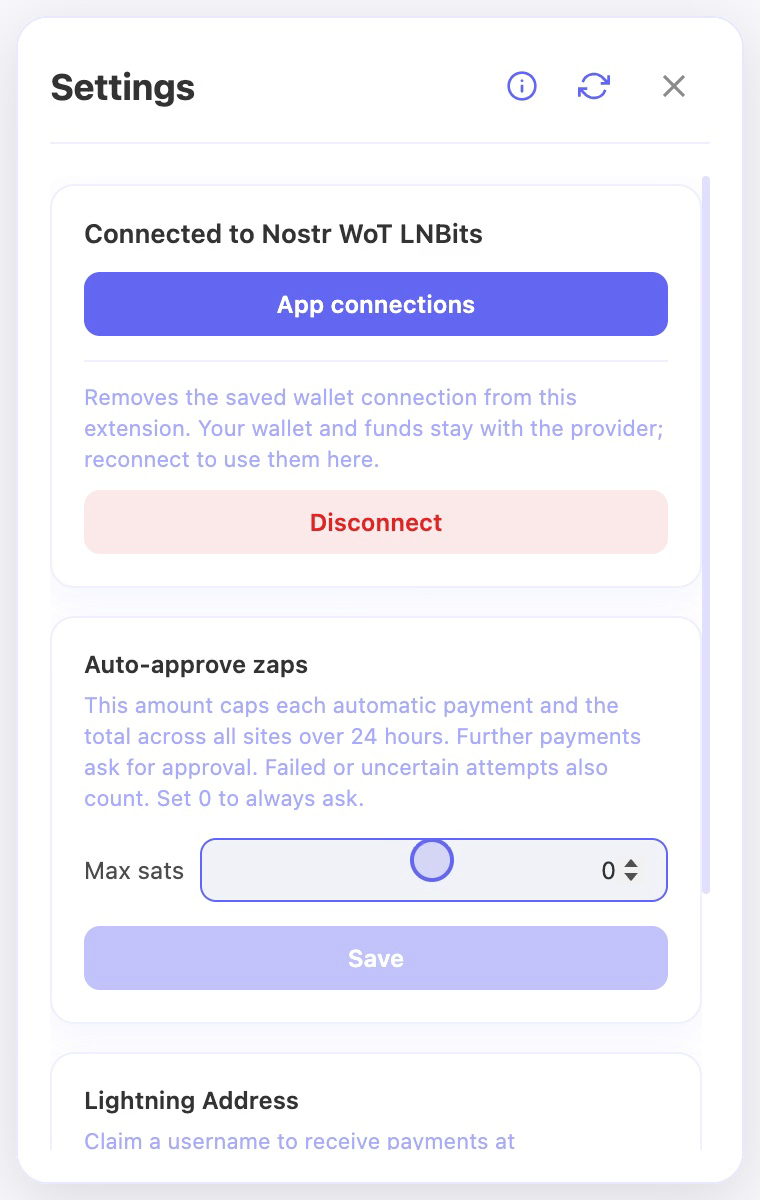
Change payment auto-approval
Automatic approval can let eligible small payments proceed without a confirmation popup. The threshold determines payment eligibility; other permission and safety checks may still require confirmation.
Before you start
- Connect the wallet you want to configure and check the active account.
- Choose an amount in sats that you are comfortable allowing without reviewing each request.
Steps
- Open Wallet → Settings and find the Auto-Approve Threshold.
- Enter a whole number of sats. Use zero if you want each payment to require confirmation.
- Save the change, then reopen the settings to check the stored value.
- Review wallet activity regularly and lower the threshold or revoke a site’s payment permission if you see unexpected requests.
Check the result
- Payments above the threshold should require confirmation; a payment below it may still require review.
- This setting does not give a website permission to use the wallet on its own. Review site access and your wallet provider’s connection permissions separately.
On screen
Screenshots use the English interface and demo accounts. Open an image to see it at full size.