Wallet & zaps
Send a zap
A zap sends sats to someone through a compatible Nostr app. The app requests a Lightning payment from the extension’s connected wallet.
Before you start
- Connect a Lightning wallet with enough balance for the payment and any fees.
- Use a Nostr app that supports paying through the extension, and check the recipient before starting.
Steps
- Choose the zap or Lightning button on the profile or note you want to support.
- Enter the amount in sats and check which recipient the app displays.
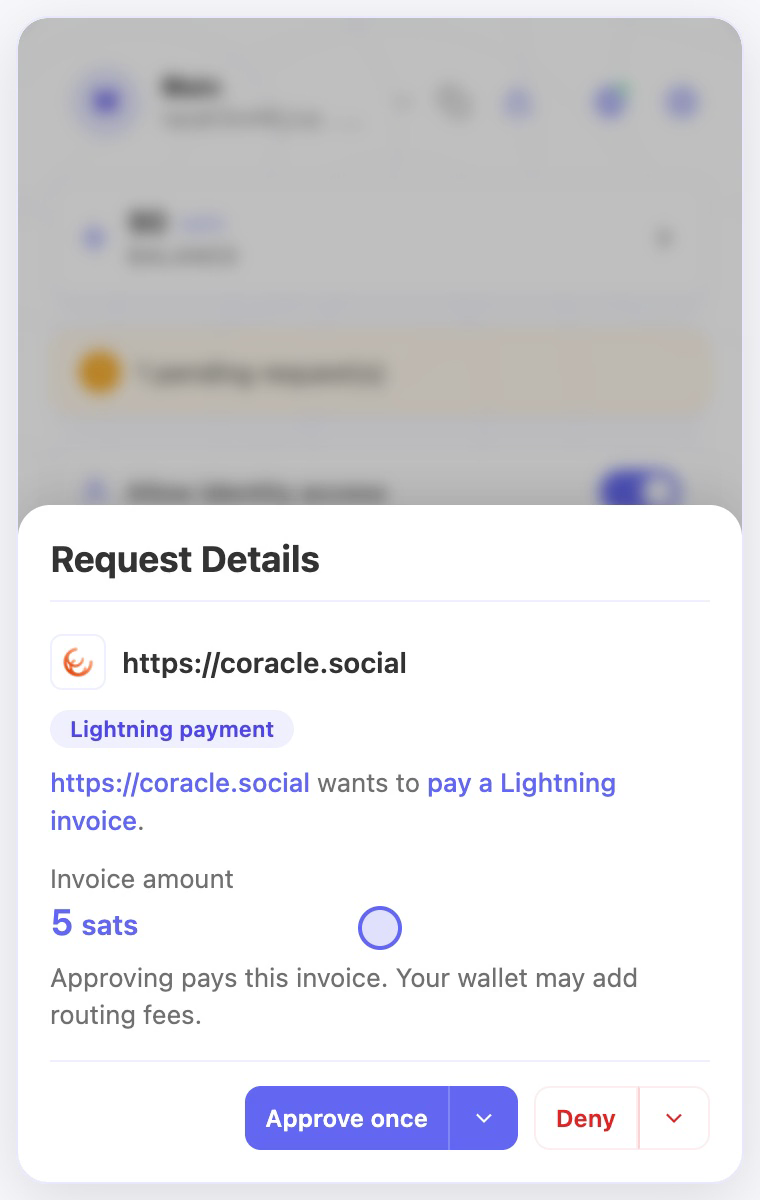
- Review any signing and payment requests in the extension. Check the amount, recipient, and fees where shown before approving.
- Return to Wallet and check activity to confirm the payment outcome.
Check the result
- A completed payment should appear in wallet activity. The app’s visible zap result can depend on its own updates.
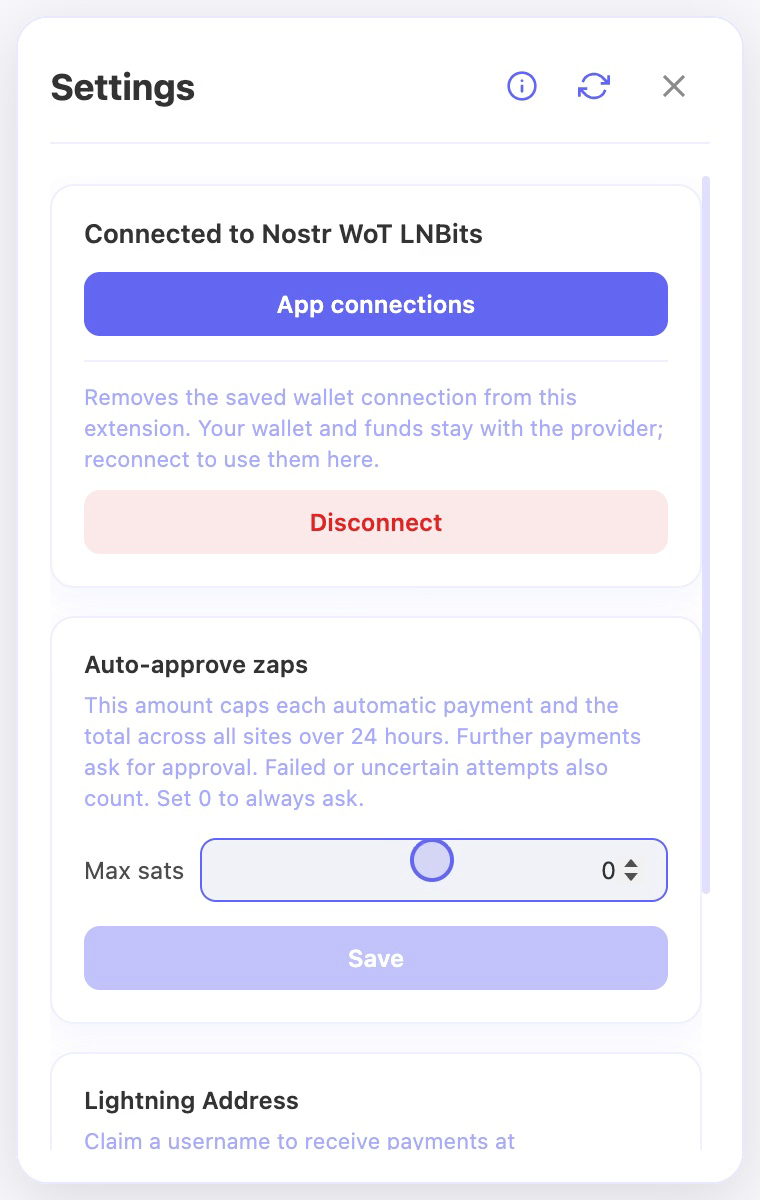
- If the outcome is unclear, inspect wallet history before retrying. Small payments may not prompt when automatic approval is enabled and its checks pass.
On screen
Screenshots use the English interface and demo accounts. Open an image to see it at full size.
Watch the related video
Video in English. Some labels may differ by version.
Watch on YouTube