App permissions
Review saved sign-in permissions
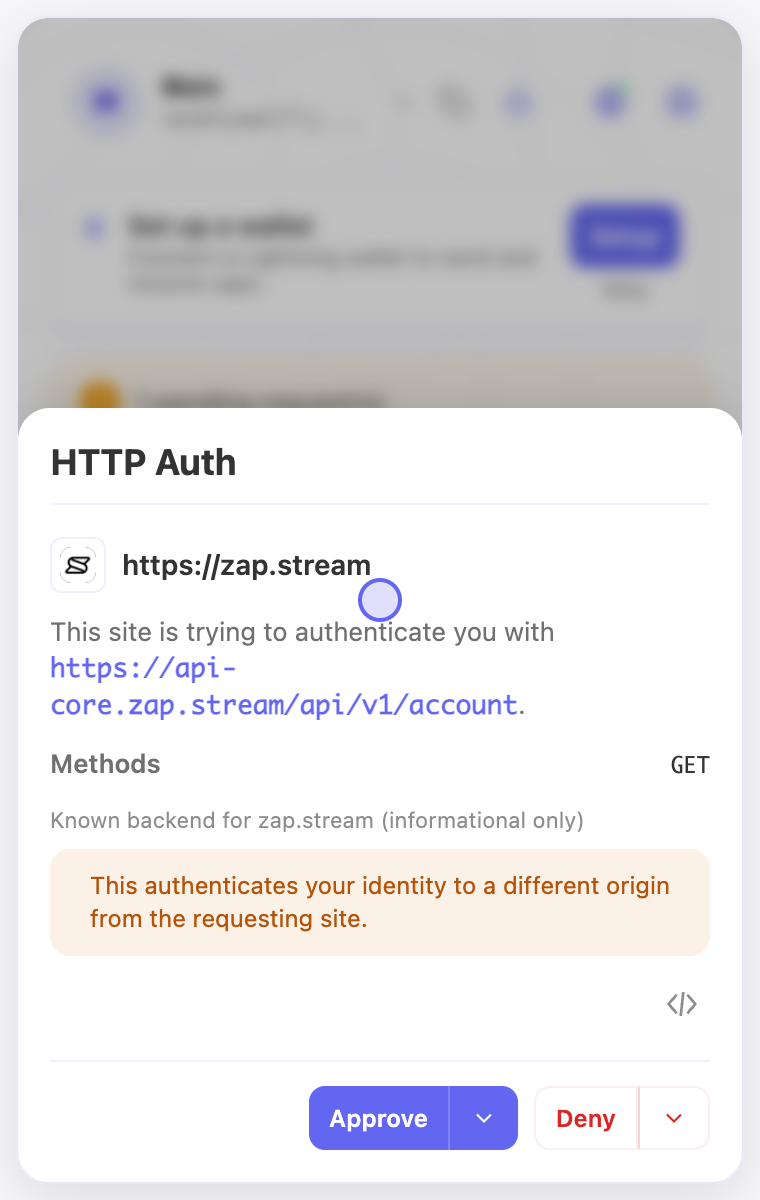
A website may ask to identify you to its backend or to a Nostr relay. These sign-in permissions are separate from permission to sign ordinary posts or messages.
Before you start
- Select the account whose saved sign-in decisions you want to review.
- Identify the website and the backend or relay destination involved in the request.
Steps
- Open Permissions, then choose Backend authentication to review explicit saved backend decisions for the active account.
- Revoke a saved backend decision you no longer want. Its scope includes the requesting site, exact URL, and method.
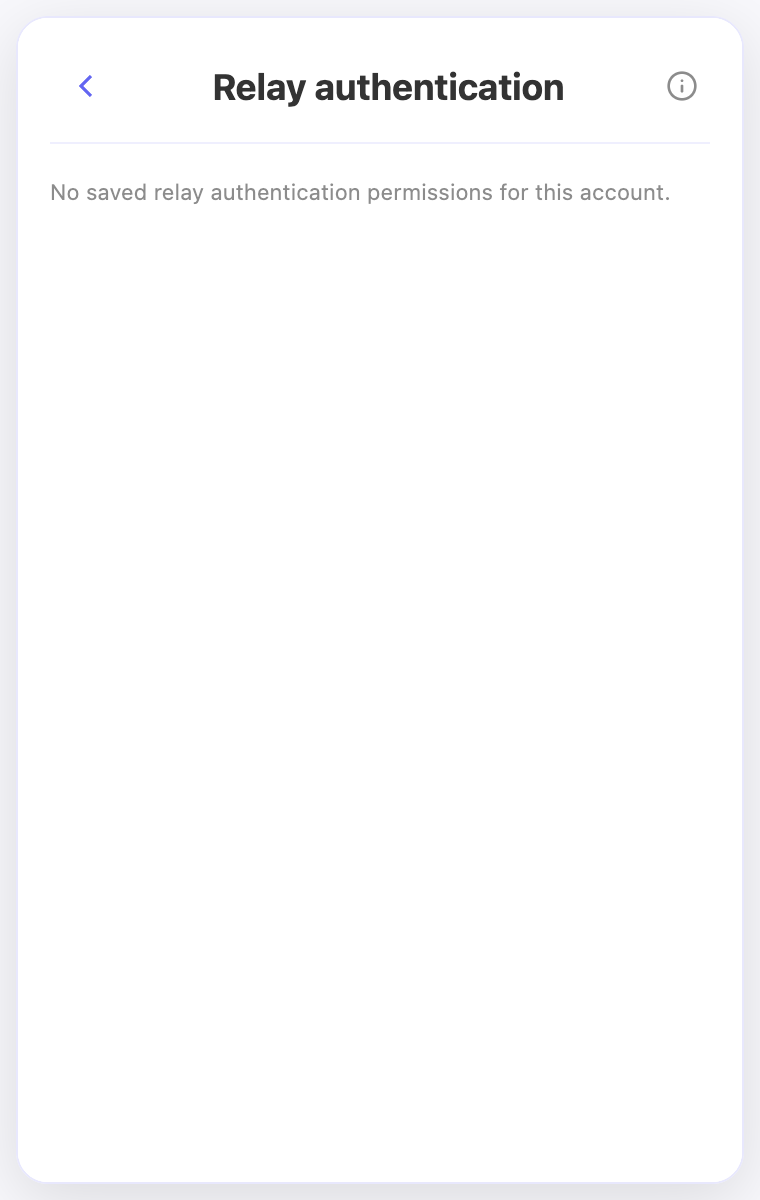
- Open Relay authentication to review a relay’s allowed connected apps. Select the apps you intend to allow, or review the scope carefully before choosing all connected sites.
- Review Default backend auth separately. It starts off and can allow same-origin or verified website/backend pairs automatically; read its policy link before enabling it.
Check the result
- An empty backend list does not prove automatic authentication is off. Check the Default backend auth setting as well.
- Revoking permission affects future approvals; it does not sign you out of an existing website session or close an already authenticated relay connection.
On screen
Screenshots use the English interface and demo accounts. Open an image to see it at full size.
Watch the related video
Video in English. Some labels may differ by version.
Watch on YouTube