Protect an existing Nostr account with a passkey
Add passkey protection to a private-key account already in Nostr WoT, keep the same public identity and check local lock and unlock.

Add passkey protection to a private-key account already in Nostr WoT, keep the same public identity and check local lock and unlock.
Before you start
Unlock the extension and select your existing local signing account. Keep your original recovery material and record the public npub before changing protection.
Use a browser and provider that support PRF. This guide uses the English interface; the recorded example uses Chrome and Touch ID. Other devices show their own verification prompt.
Steps
- Open Settings → Security → Passkey settings and choose Set up passkey unlock.
- If your vault has a password, enter the current password. Select Confirm to authorize the protection change; existing accounts stay in the vault.
- Complete the browser’s passkey creation prompt for passkeys.nostrwot.com. In the recorded Chrome flow, Touch ID confirms creation.
- Recovery saves automatically when the provider supports it. Complete the additional authentication prompt. A confirmed save returns to Passkey settings, where the registered credential and provider-storage status appear, without a download screen. If provider storage is unavailable or fails, download the encrypted recovery file and acknowledge that the passkey is also required.
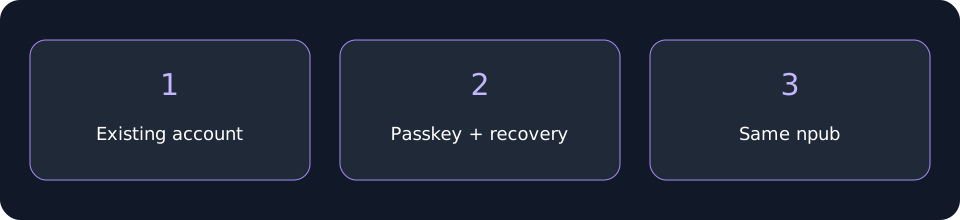
- Return to Security and check that Use passkey is enabled and auto-lock is set to 15 minutes. These protection settings apply to the vault. Compare the account’s npub with the value recorded before setup.
- Lock the extension, reopen it and verify with the enrolled passkey. Successful unlock checks local access; it does not test account removal, reimport or recovery on a different device.
 Protect an existing Nostr account with a passkey
Check your recovery
Keep your original private-key backup until you have separately verified recovery. A passkey protecting this vault does not erase older copies of its keys or turn remote/watch-only accounts into local signing keys.
An additional encrypted recovery file is available in Passkey settings. Refresh snapshots after account or key changes. File recovery requires an enrolled passkey able to decrypt that snapshot; confirmed provider storage does not prove cross-device synchronization.
Recover a Nostr account with a passkey · Migrate a compatible passkey account to Nostr WoT
Related video walkthroughs
These videos are in English.
Video coming soon. Follow the written guide.