Create a Nostr account with a passkey
Create a new Nostr identity in the extension, protect it with your device’s passkey provider and prepare recovery before finishing setup.

Create a new Nostr identity in the extension, protect it with your device’s passkey provider and prepare recovery before finishing setup.
This guide describes the passkey flow. If these controls are missing, check your installed extension version. Button names below match the English interface.
Before you start
Use an extension version with Create with passkey. Browser and provider support for PRF is required; available providers depend on your device.
Start with a new installation. Have a safe location for an encrypted recovery file that you can access from another device.
Steps
- Select Create with passkey. The browser opens its provider prompt for passkeys.nostrwot.com; choose a provider and confirm.
- When the provider supports recovery storage, the extension saves it automatically. Confirm the additional authentication prompt. Once the provider confirms the save, setup advances directly to Protect your keys without a download screen or another Continue click.
- Only if provider storage is unavailable or fails: select Download recovery file, save it and acknowledge that your passkey is also required. Optional relay saving appears on this fallback screen; relay acceptance does not replace the required file and acknowledgement.
- On Protect your keys, Confirm keeps Use passkey selected and the 15-minute auto-lock default. Choose follows or skip them, then finish on All Set. Record your public npub so you can check the identity after recovery.
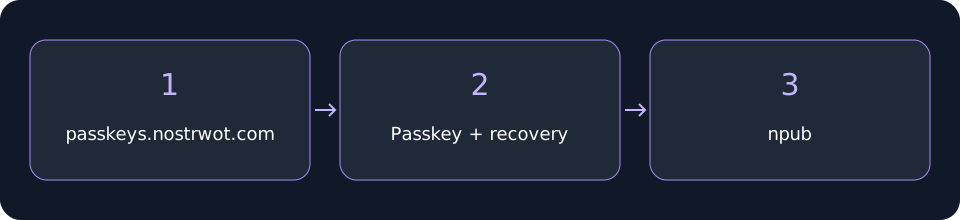 Create a Nostr account with a passkey
Check your recovery
The encrypted file requires an enrolled passkey that can decrypt its snapshot. Keep access to the provider; a file alone is insufficient.
An additional recovery file is available later in Settings → Security → Passkey. Refresh snapshots after account or key changes. Local event archives are separate, and provider confirmation does not prove synchronization with another device.
Related video walkthroughs
These videos are in English.