Managing Your Identity
Your Nostr identity is the foundation of everything in the extension. Learn to manage your keys, profile, and signer settings.

Your Nostr identity is the anchor for everything else in the extension — your trust network, your wallet, your permissions. This guide covers how to manage that identity, keep your keys secure, and use the NIP-07 signer that lets websites interact with your Nostr account.
NIP-07 Signer Support
NIP-07 is the standard that allows Nostr web applications to request signatures from a browser extension without ever seeing your private key. When you visit a Nostr client like Primal, Snort, or Coracle, it can ask the extension to sign events on your behalf.
Here is how it works in practice:
- A website calls
window.nostr.getPublicKey()to identify you. - When you post a note or update your profile, the site sends the unsigned event to the extension.
- You see a permission prompt. If you approve, the extension signs it with your private key and sends back the signature.
- Your private key never leaves the extension.
If you previously used another NIP-07 extension like nos2x or Alby, disable it before using Nostr WoT. Only one NIP-07 signer should be active at a time to avoid conflicts.
Managing Your Nostr Profile
Open the extension and choose Edit profile in the Account section. Edit your display name, biography, picture, cover image and optional public fields. The picture and cover controls open the image editor; their high-contrast labels remain visible over both light and dark photos.
Review the preview before confirming publication. The extension signs and publishes a kind:0 profile event with the active identity and updates its local profile cache. Other clients must fetch the new event before displaying the changes; propagation time depends on their relays and caches. Profile fields are public. Keep recovery words and private keys out of them.
Key Security Best Practices
Your seed phrase and nsec (private key) are the single most important pieces of data in your Nostr identity. Anyone who has either one controls your account — they can post as you, change your profile, and access your contacts. There is no password reset, no support team to call.
Storage
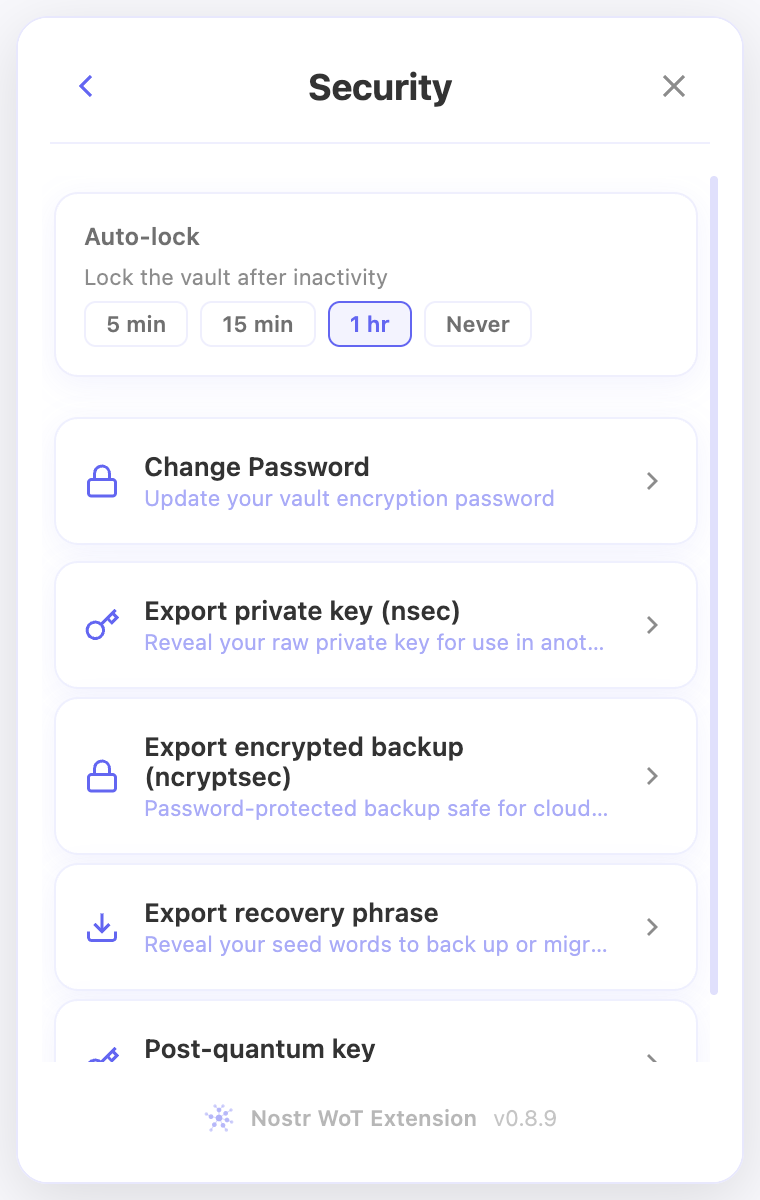
- The extension encrypts your keys locally using your encryption password. They are never stored in plain text.
- Back up your 24-word seed phrase in a password manager or write it on paper and store it somewhere safe.
- Never share your seed phrase or nsec with anyone, paste them into a website, or send them in a DM.
Encryption Password
- Choose a strong, unique password when setting up the extension.
- The extension locks after a period of inactivity. You will need this password to unlock it.
- If you forget this password, you can restore access using your 24-word seed phrase.
Multiple Devices
If you use the extension on multiple browsers or machines, restore from your 24-word seed phrase on each one. Your identity is tied to your key pair, not to any single device.
Your seed phrase works independently of any single browser or device. Keep it in a safe place and you can always restore your full Nostr identity.
Switching Between Identities
The extension supports multiple identities. If you manage more than one Nostr account, switch between them from the Identity tab by clicking your profile avatar. Each identity has its own trust graph, wallet, and permission settings.
What's Next?
With your identity secured, it is time to understand how the extension uses it to build your Web of Trust. If you want to connect a wallet, jump to Setting Up Your Wallet.
Account previews and finishing setup
When a main recovery phrase already exists, Create New opens New Sub-Account. It uses that phrase with another derivation path; it does not generate a second recovery phrase. Edit the name if needed. The npub and hex public keys appear below their labels in accent color, shortened in the middle. Copy icons copy the complete values. Advanced sits below the keys and opens the path editor; leave the proposed path unless you need a specific one.
Follow suggestions show names and small pictures from verified public profiles when available. The extension reuses a shared cache for 30 minutes, keeping at most 500 profiles, and looks up missing metadata at purplepag.es. The public author key is sent to that directory; images load separately from the profile's image host. Missing profiles fall back to a shortened key. Loading does not block selection or Skip for now.
The completion screen puts the account summary and Get Started at the bottom. It shows the account name and a copyable public key; only derived sub-accounts are described as sharing the main seed phrase. New accounts can use global rules or copy site overrides from another account. Authentication grants stay separate.
In the extension
Screenshots use the English interface and demo accounts. Open an image to see it at full size.
Related video walkthroughs
These videos are in English.